
Official manual · chapter 4
Accessing VRROOM Web Server
Original text and images from the official 8K VRROOM User Manual (Rev 1.00), pages 17–19: web server access, the top section and the INFO section.
Accessing VRROOM Web Server
It is mandatory for accessing VRROOM web server to have an Ethernet cable connected between
LAN CONTROL RJ45 connector and your local router or switcher.
By default VRROOM use DHCP to retrieve an assigned IP automatically. You can set static IP
from the VRROOM webserver config page.
In case you have setup a wrong Static IP and unit is not reachable anymore, you can set DHCP ON from OLED menu to retrieve access via dynamically assigned IP again (as in default mode).
There is 3 ways of accessing the VRROOM web server:
- Universal way through IP address:
Simply open up a web browser on any devices located on the same network than the VRROOM unit and type in the IP address that appears on the VRROOM OLED directly in the address bar of your web browser. (ex: 192.168.1.137) - Hostname access:
Instead of typing IP address directly, you can use the Hostname listed on VRROOM OLED LAN INFO page (press INFO button to cycle OLED page till you see LAN INFO and Hostname listed). Simply open up a web browser from any devices located on the same network than the VRROOM unit and type in the Hostname that appears on the VRROOM OLED directly in the address bar of your web browser. (ex:http://VRROOM-XX/)
XX represents the 2 last digits of your VRROOM unit unique serial number. - mDNS access:
For iOS/MAC devices, you might want to use mDNS access. Retrieve the mDNS address from VRROOM OLED LAN INFO page (press INFO button to cycle OLED page till you see LAN INFO and mDNS address listed). Simply open up a web browser on any MAC/iOS devices located on the same network than the VRROOM unit and type in the mDNS address that appears on the VRROOM OLED directly in the address bar of your web browser. (ex:http://VRROOM-XX.local/)
XX represents the 2 lasts digits of your VRROOM X unit unique serial number.
Please note that only IP address access is universal and should work across any web browser based devices as long as they are located on the same network. Others methods should work just fine in many cases but we cannot guarantee that they will always do, in case of issue accessing the webserver, please use IP address.
VRROOM Web Server Top section

Immediately upon accessing the webserver you will end up on the default INFO page with the above top tier section displayed.
From that top tier section you will be able to retrieve the following information (also displayed on VRROOM OLED default page and once you cycle info page with INFO button to reach LAN page info).
Hostname: Display VRROOM hostname for URL access
mDNS: Display VRROOM mDNS for URL access
IP Address: Display the current IP Address of the VRROOM
FW: Display the current FW running on the VRROOM.
VRROOM Web Server INFO Section
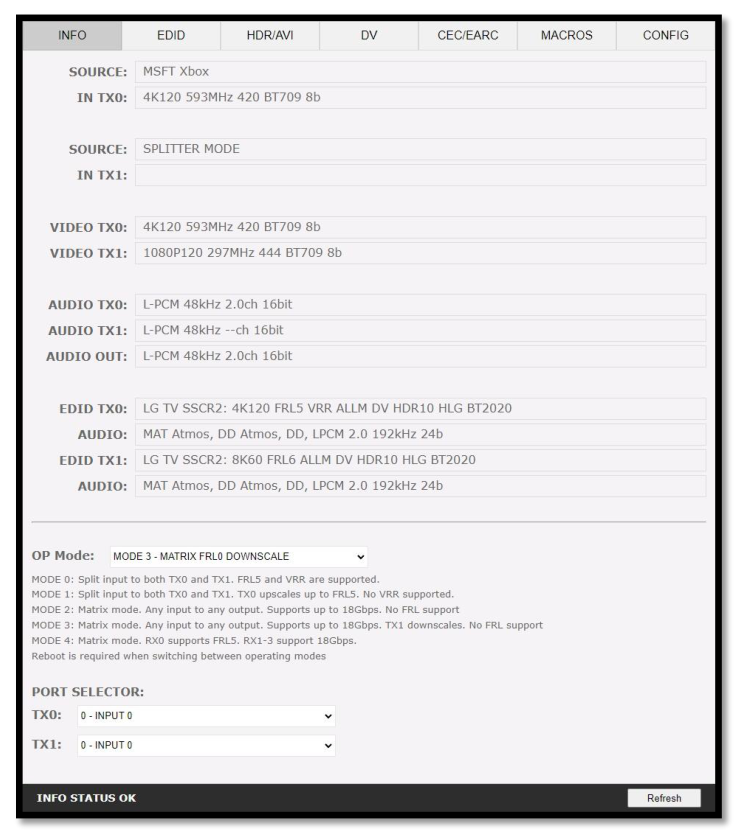
SOURCE: When available, Display active source name currently outputting thru TX0 or TX1
output.
IN TX0/IN TX1: Display the source name original video signal going thru TX0 or TX1 output.
VIDEO TX0/TX1: Display the real video signal (if any operation on it) going out thru TX0 or
TX1 output.
AUDIO TX0/TX1/OUT: Display the audio signal info going out thru TX0, TX1 or AUDIO OUT
output.
EDID TX0/TX1: Display the EDID video max capabilities of any connected sink at TX0 or TX1
output.
AUDIO: Display the EDID audio max capabilities of any connected sink at TX0 or TX1 output.
OP Mode: Select the desired Operating Mode. Unit will reboot if you switch SPLITTER<>
MATRIX.
PORT SELECTOR: Allow you to select which input is routed to TX0 or TX1 output.
REFRESH: Refresh the current page.