
Official manual · chapter 2
VRROOM Power/Status OLED and the four buttons
Original text and images from the official 8K VRROOM User Manual (Rev 1.00), pages 8–12. Click or tap any image to enlarge it.
VRROOM Power/Status OLED

The VRROOM OLED will turn ON when power supply is applied; VRROOM Logo will be displayed followed by a similar default infopage to the one represented below.

[192.168.1.117]: VRROOM IP address will be displayed here if LAN CONTROL RJ45 output is
connected to your LAN/WAN router/switcher. mDNS and other way are available if you cycle OLED
infopage.
[FW: 0.6]: Firmware Version of VRROOM is reported here.
If any active input is connected and routed to active output, the default OLED infopage will indicate which input is active (IN1 on above pic). VRROOM will process handshake with the active input and once completed the signal information will be displayed. [4K50 4:2:2 BT2020 12b LLDV 594MHz 2.2] on the above picture.
If any sink is connected at TX0 output, TX0 section of the default OLED infopage will report its EDID name (LG TV on above pic) and its max supported resolution (4K60 4:4:4 8b BT2020 HDR on above pic) on the first line. Second line will display the current signal going to it, the small arrow on the right indicate if signal is upscaled ↑, Downscaled ↓ or passing thru untouched →
[OLED OFF]: Insufficient power, OLED timer expired (default 30s) or OLED OFF. Use the VRROOM power supply; press any button if OLED timer expired and make sure the OLED is ON.
[OLED ON]: The VRROOM unit is receiving power and is ready to accept an HDMI signal.
VRROOM Menu/Toggle Button
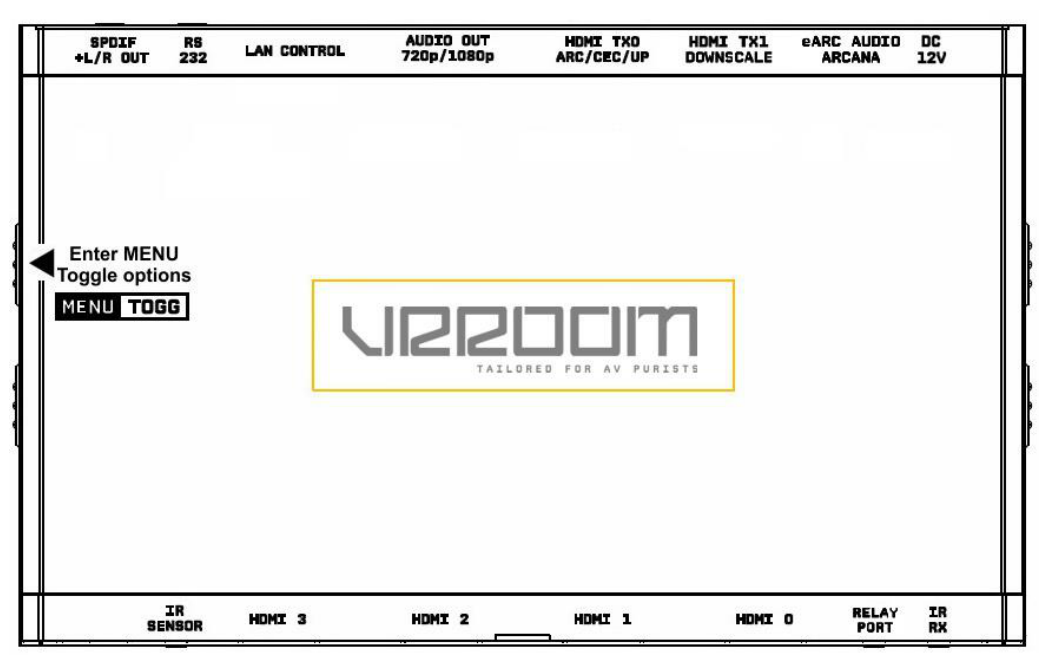
The 8K VRROOM offers 2 functions per push button.
[MENU] Wake up from sleep/fade mode and/or Enter VRROOM OLED MENU.
[TOGG] When you are in VRROOM OLED MENU, the TOGGLE button allows you to change and cycle any setting value.
Note: You can also control and change settings with IR codes, through IP Control or RS232 for MAC/WIN/Linux or from the embedded Webserver for MAC/WIN/Linux PC or via Android/iOS smartphone/tablet or any web browser based device.
VRROOM Info/Exit Button

The 8K VRROOM offers 2 functions per push button.
[INFO] Wake up from sleep/fade mode and/or Cycle OLED infopage: INFO > LAN INFO > HDR INFO > …
[EXIT] When you are in VRROOM OLED MENU, the EXIT button allows you to exit OLED MENU.
VRROOM Out1/Up Button

The 8K VRROOM offers 2 functions per push button.
[OUT1] Wake up from sleep/fade mode and/or set and switch active or inactive inputs for TX1 output.
[UP] When you are in VRROOM OLED MENU, the UP button allows you to navigate upward.
VRROOM OLED/OSD/Webserver will report info for up to two active inputs in Matrix operating mode.
VRROOM Out0/Down Button

The 8K VRROOM offers 2 functions per push button.
[OUT0] Wake up from sleep/fade mode and/or set and switch active or inactive inputs for TX0 HDMI output.
[DOWN] When you are in VRROOM OLED MENU, the DOWN button allows you to navigate downward.
VRROOM OLED/OSD/Webserver will report info for up to two active inputs in default Matrix mode.